Quickstart
Purpose: go from an installed package to your first completed run in Watcher.
Prerequisites:
- Watcher is installed in your project.
- Your project has
@playwright/testinstalled locally and at least one package script that runs Playwright, such as:
{
  "scripts": {
    "test": "playwright test"
  }
}
1. Start Watcher
From the directory containing your package.json:
npx watcher start
Expected result: Watcher prints what it discovered, followed by the dashboard address:
Starting Watcher…
Watcher project root: /path/to/your-project
Discovery: package.json found, 1 Playwright config(s), 1 test directory, 5 package script(s)
Test inventory: 2 spec file(s) across 1 directory
Project health: healthy (0 error(s), 0 warning(s))
Dashboard: http://127.0.0.1:5050
Press Ctrl+C to stop Watcher.
The counts reflect your project. If any health check is not healthy, Watcher prints its reason underneath the health line.
Start on another port with npx watcher start --port 5051.
2. Open the dashboard
Open the printed address, by default http://127.0.0.1:5050, in your browser. http://localhost:5050 also works.
The Project Summary panel shows the project name, health, number of test files and number of package scripts. The header shows a Live connection active indicator.
3. Plan the run
In Run Control:
- Choose your script from Package script, for example
test — playwright test. - Optionally expand Run options to override projects, browser mode, workers or retries. Leave them as As configured for your first run.
- Review Effective run. It shows the settings that will apply, where each one comes from, and the number of Planned Tests. Expand Command preview to see the exact command.
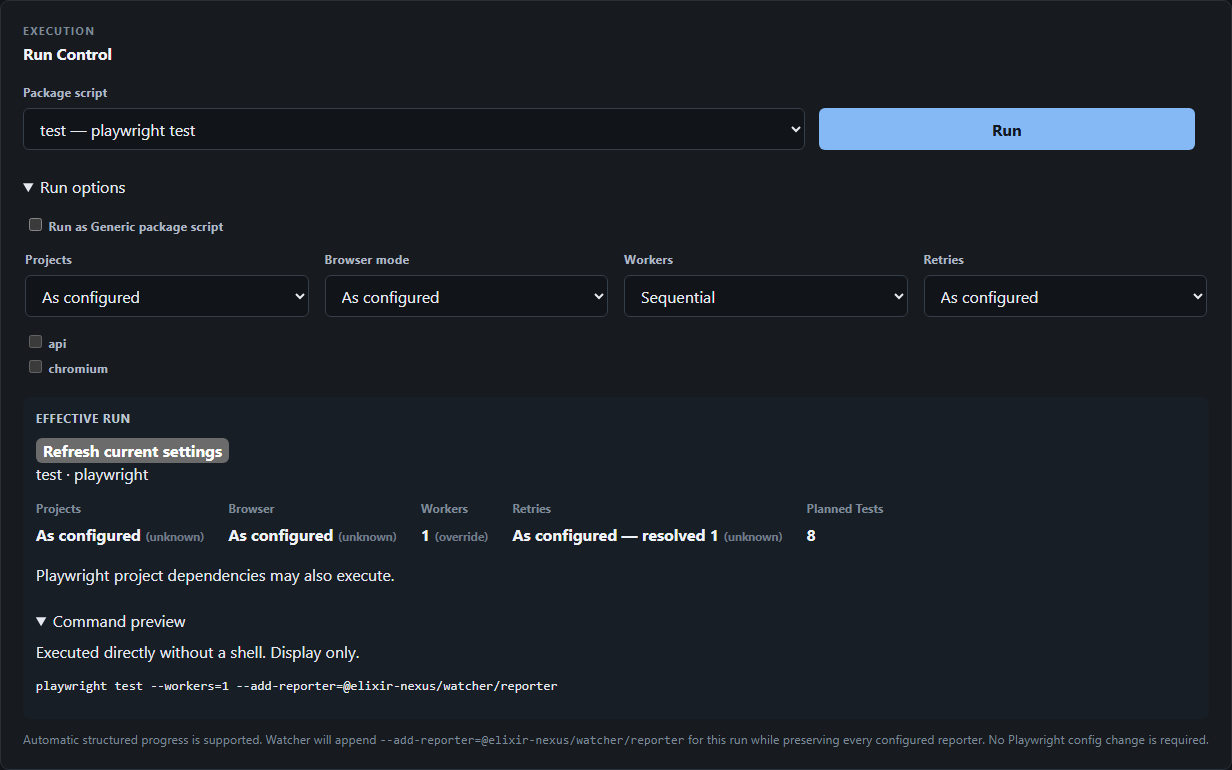
4. Run and watch
Select Run. The Current Run panel shows the run status, mode and duration. On Playwright 1.63 or newer you also see Integration: Enhanced, a progress bar, counters and the tests currently executing. Live Output streams the console output.
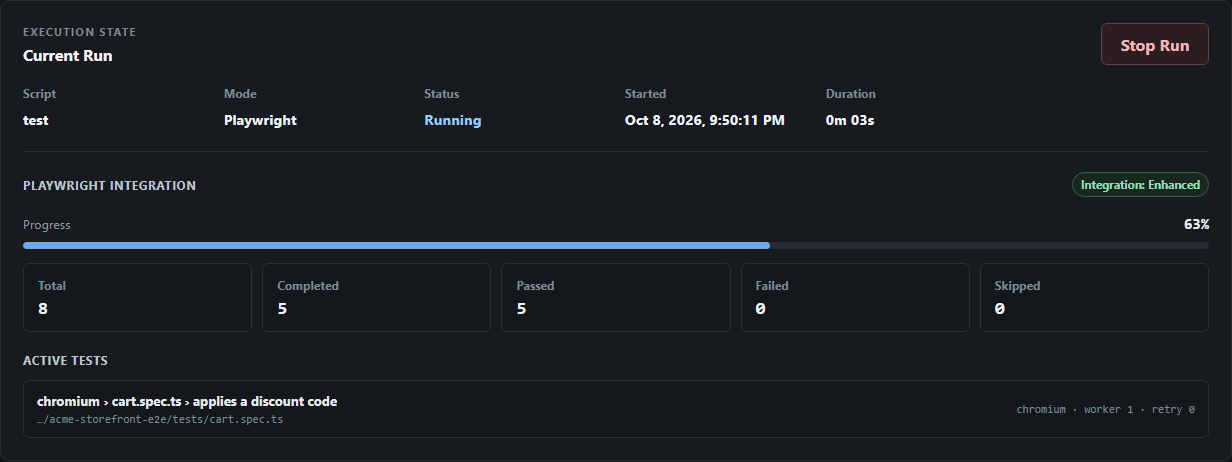
To end a run early, select Stop Run.
5. Review the result
When the run finishes, it appears in Recent Runs. Select the script name to open Run Detail, which shows how the run was requested, its outcome and the final result of each test, failed tests first.
From Run Detail you can also select Repeat run… to load the same settings into the Run Planner.
6. Stop Watcher
Press Ctrl+C in the terminal. This also stops any active managed run or tool session.
What you have now
- A
.watcher/watcher.dbfile in your project containing the completed run's history. - Playwright's normal outputs, such as
playwright-report/ortest-results/, written exactly as your configuration specifies.
Next steps
- Learn the dashboard layout.
- Understand which scripts run in Playwright-aware mode.
- Read about run history and Repeat Run.
Troubleshooting
| Symptom | Fix |
|---|---|
No package.json found in <folder>. | Run the command from your project root, not a subfolder. |
Port 5050 is already in use. | Use --port with a free port. |
Health shows a warning for @playwright/test | Install Playwright in the project: npm install --save-dev @playwright/test. Generic scripts still run. |
| No progress counters, only logs | The script runs in Generic mode or Basic integration. See Playwright integration. |
| New scripts do not appear | Watcher reads scripts at startup. Restart it after editing package.json or the Playwright config. |